> ## Documentation Index
> Fetch the complete documentation index at: https://docs.trysiren.io/llms.txt
> Use this file to discover all available pages before exploring further.
# Chat Node [Beta]
This node is only available in Advanced Workflow
Use the **Chat Node** to trigger chat-based interactions through providers like Slack, MS Teams, or Email. It is useful for automating conversations, collecting responses, or enabling interactive messaging flows as part of your workflow.
 ### Configuration Options
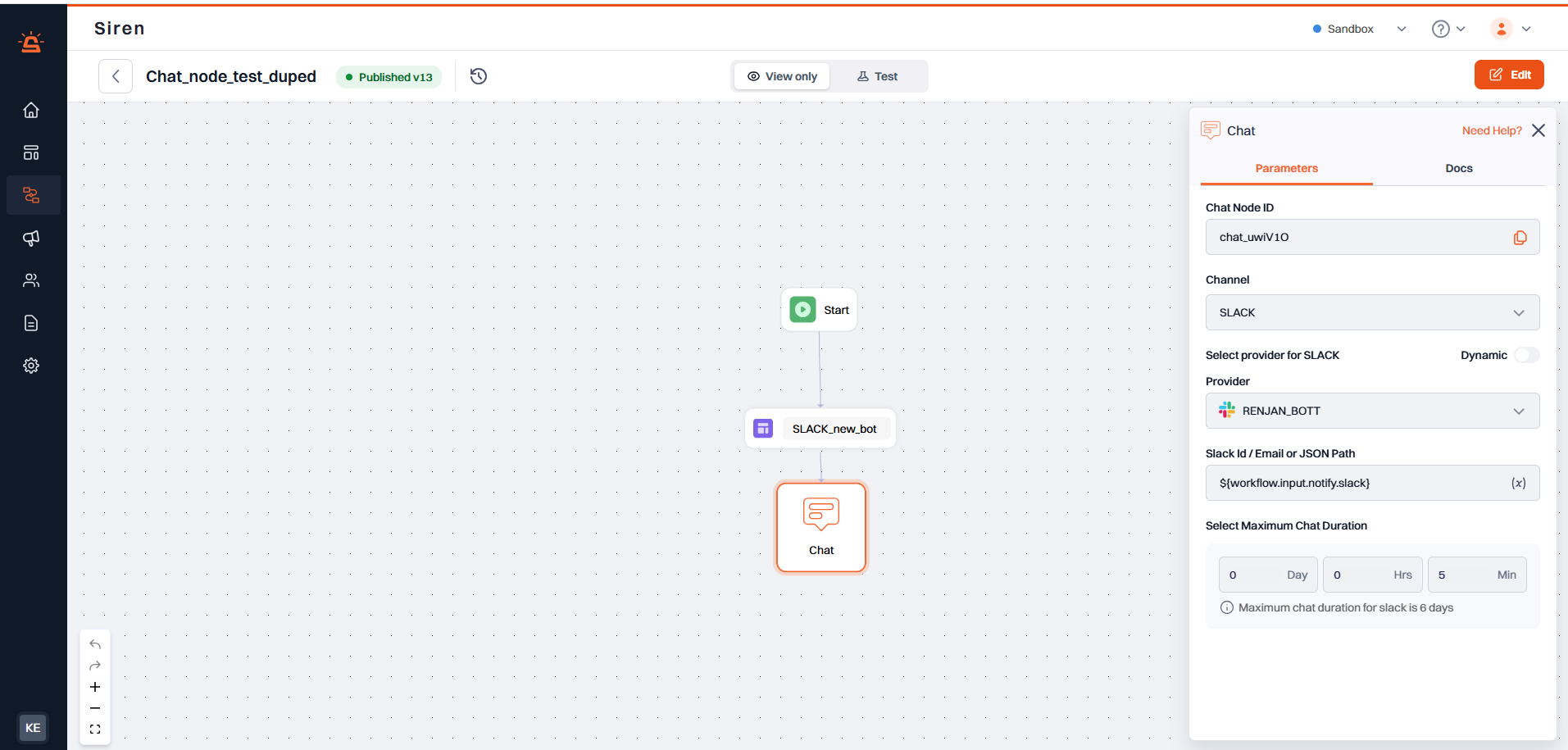
When you add a Chat Node, you will see the following fields in parameters:
* **Chat Node ID**: A system-generated unique identifier for the node. This value is read-only and can be copied and saved for later use.
* **Select Channel**: Choose the chat platform you want to track — e.g., Slack, MS Teams, Email.
* **Select Provider**: From the dropdown, select a provider configured for the chosen channel.
* **Dynamic Provider**: A toggle switch that allows you to use a provider dynamically at runtime. When enabled, the provider will be resolved using a variable or JSON path.
* **Channel ID or JSON Path**: Enter the channel ID where the message should be sent. Alternatively, use a JSON path to dynamically fetch the channel ID from the input payload.
* **Select Maximum Chat Duration**: Define the duration for how long the chat session should stay open. Specify the value in days, hours, and minutes.
* **Provider Integration Name or JSON Path** *(only visible when Dynamic Provider is enabled)*: Input the provider integration name or a JSON path to dynamically resolve the provider during execution.
> ### Example
>
> Let’s say you want to send a Slack message and keep the conversation active for 2 hours and 15 minutes by tracking the response and navigating the workflow based on the response. Here’s how you might configure the Chat Node:
>
> * **Chat Node ID**: Auto-generated
> * **Select Channel**: `slack`
> * **Select Provider**: `slack-primary`
> * **Channel ID**: `#incident-response`
> * **Select Maximum Chat Duration**: `0 Days`, `2 Hours`, `15 Minutes`
> If you’re using a dynamic provider:
> * **Dynamic Provider**: Enabled
> * **Provider Integration Name or JSON Path**: \$`{workflow.input.data.provider_name}`
> * **Channel ID or JSON Path**: \$`{workflow.data.channel_id}`
>
> ```json theme={null}
> {
> "provider_name": "slack",
> "channelId": "ABCXX1234"
> }
> ```
### Configuration Options
When you add a Chat Node, you will see the following fields in parameters:
* **Chat Node ID**: A system-generated unique identifier for the node. This value is read-only and can be copied and saved for later use.
* **Select Channel**: Choose the chat platform you want to track — e.g., Slack, MS Teams, Email.
* **Select Provider**: From the dropdown, select a provider configured for the chosen channel.
* **Dynamic Provider**: A toggle switch that allows you to use a provider dynamically at runtime. When enabled, the provider will be resolved using a variable or JSON path.
* **Channel ID or JSON Path**: Enter the channel ID where the message should be sent. Alternatively, use a JSON path to dynamically fetch the channel ID from the input payload.
* **Select Maximum Chat Duration**: Define the duration for how long the chat session should stay open. Specify the value in days, hours, and minutes.
* **Provider Integration Name or JSON Path** *(only visible when Dynamic Provider is enabled)*: Input the provider integration name or a JSON path to dynamically resolve the provider during execution.
> ### Example
>
> Let’s say you want to send a Slack message and keep the conversation active for 2 hours and 15 minutes by tracking the response and navigating the workflow based on the response. Here’s how you might configure the Chat Node:
>
> * **Chat Node ID**: Auto-generated
> * **Select Channel**: `slack`
> * **Select Provider**: `slack-primary`
> * **Channel ID**: `#incident-response`
> * **Select Maximum Chat Duration**: `0 Days`, `2 Hours`, `15 Minutes`
> If you’re using a dynamic provider:
> * **Dynamic Provider**: Enabled
> * **Provider Integration Name or JSON Path**: \$`{workflow.input.data.provider_name}`
> * **Channel ID or JSON Path**: \$`{workflow.data.channel_id}`
>
> ```json theme={null}
> {
> "provider_name": "slack",
> "channelId": "ABCXX1234"
> }
> ```