> ## Documentation Index
> Fetch the complete documentation index at: https://docs.trysiren.io/llms.txt
> Use this file to discover all available pages before exploring further.
# Template Actions
> See how to manage templates
# Tag Templates
 Tags help categorize templates for easier filtering and management across your workspace.
While setting up a template, assign tags by selecting from existing ones or typing a new tag name and clicking **Create Tag**
Tags can contain up to 20 alphanumeric characters, hyphens, and underscores. Assign colors from a predefined palette for quick visual reference.
You can add, remove, or update tags even after a template is published.
This lightweight tagging flow keeps your workspace organized and improves discoverability across all templates.
# Duplicate Templates
Tags help categorize templates for easier filtering and management across your workspace.
While setting up a template, assign tags by selecting from existing ones or typing a new tag name and clicking **Create Tag**
Tags can contain up to 20 alphanumeric characters, hyphens, and underscores. Assign colors from a predefined palette for quick visual reference.
You can add, remove, or update tags even after a template is published.
This lightweight tagging flow keeps your workspace organized and improves discoverability across all templates.
# Duplicate Templates
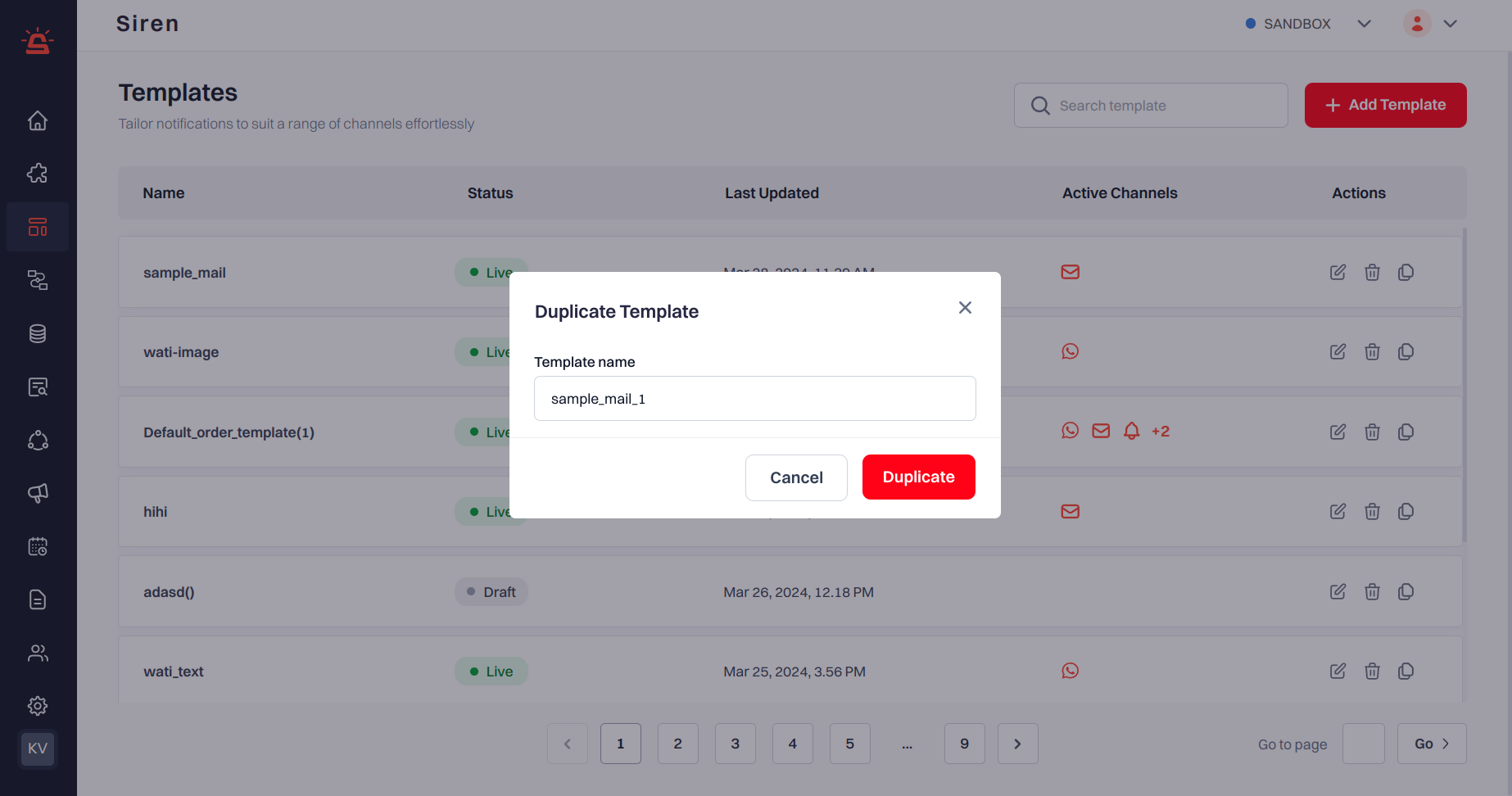 Quickly duplicate templates within the same environment to minimize repetition and streamline configuration.[](https://docs.trysiren.io/Template/Duplicate%20Template#how-to-duplicate)
**Access Templates**: Navigate to **Templates** from the left sidebar.
**Select Template**: Hover on the template to duplicate from the list, then click **Duplicate icon** under **Actions**.
**Initiate Duplication:** This action prompts the Duplicate Template dialog to appear. Review the Template name, give a new name if you want. Add a Tag.
**Confirm Duplication**: Complete the process by confirming the duplication.
The duplicated template is now available for further customisation or immediate use.
# Clone Templates
Quickly clone templates to different environments to maintain consistency and reduce errors.\[
**Access Templates**: Navigate to **Templates** from the left sidebar.
**Select Template**: Hover on the template to clone from the list, then click **Clone icon** under **Actions**.
**Initiate Cloning:** This action prompts the Clone Template dialog to appear. Review the Template name, select the environment to which you want to clone the template.
**Confirm Cloning**: Complete the process by confirming the cloning.
You can only clone a published template and the name of the template cannot be changed while cloning.
Quickly duplicate templates within the same environment to minimize repetition and streamline configuration.[](https://docs.trysiren.io/Template/Duplicate%20Template#how-to-duplicate)
**Access Templates**: Navigate to **Templates** from the left sidebar.
**Select Template**: Hover on the template to duplicate from the list, then click **Duplicate icon** under **Actions**.
**Initiate Duplication:** This action prompts the Duplicate Template dialog to appear. Review the Template name, give a new name if you want. Add a Tag.
**Confirm Duplication**: Complete the process by confirming the duplication.
The duplicated template is now available for further customisation or immediate use.
# Clone Templates
Quickly clone templates to different environments to maintain consistency and reduce errors.\[
**Access Templates**: Navigate to **Templates** from the left sidebar.
**Select Template**: Hover on the template to clone from the list, then click **Clone icon** under **Actions**.
**Initiate Cloning:** This action prompts the Clone Template dialog to appear. Review the Template name, select the environment to which you want to clone the template.
**Confirm Cloning**: Complete the process by confirming the cloning.
You can only clone a published template and the name of the template cannot be changed while cloning.