> ## Documentation Index
> Fetch the complete documentation index at: https://docs.trysiren.io/llms.txt
> Use this file to discover all available pages before exploring further.
# In-App Template
The In-App template editor in Siren allows you to create and manage rich notifications that appear within your application. You can customize the appearance and behavior of these notifications to enhance user engagement.
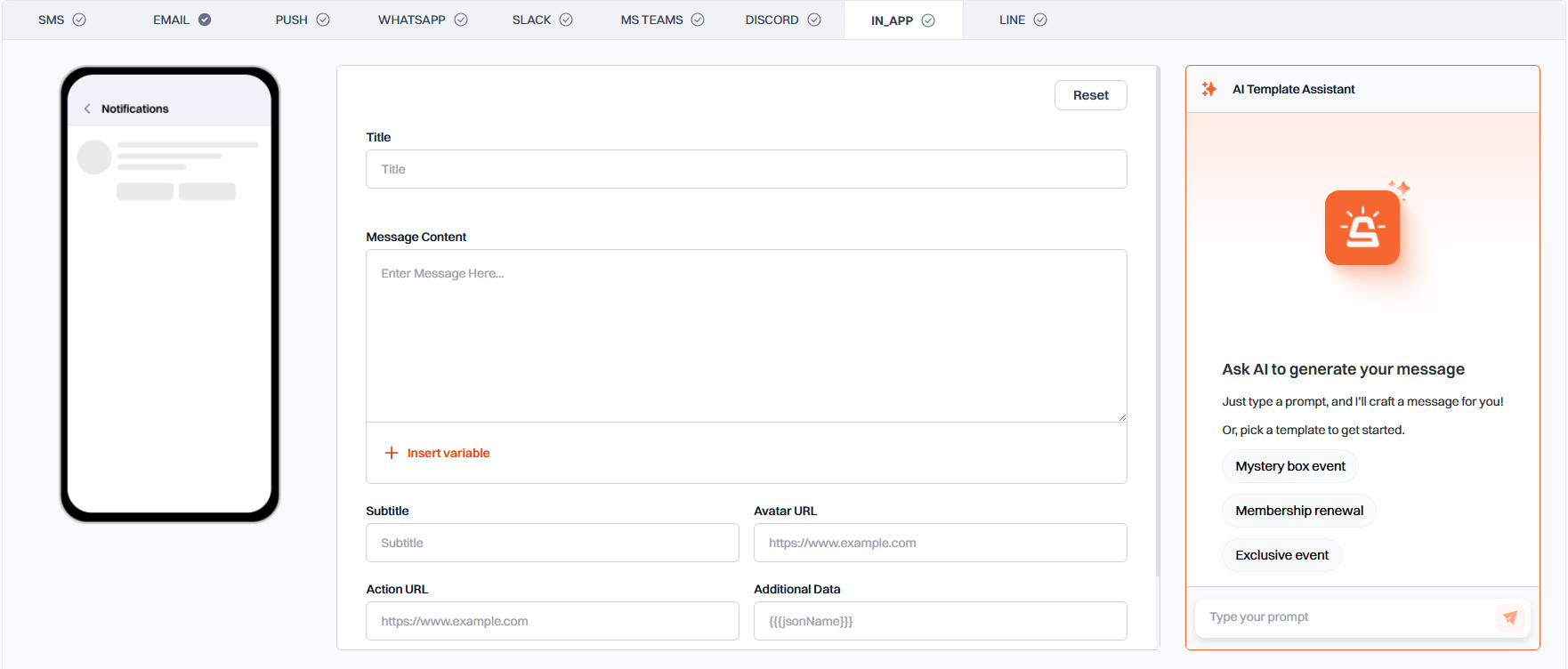 ## Notification Configuration
* **Title**: Enter a clear and concise title for your notification
* **Message Content**: Write the main message content that will be displayed to users
* **Variables**: Use the **'Insert Variable'** button to add dynamic content to your message
* **Subtitle**: Add an optional subtitle to provide more context
* **Avatar URL**: Enter a URL for the notification's avatar image
* **Media Thumbnail URL**: Add a URL for an optional media thumbnail image
* **Action URL**: Specify a URL to navigate to when the notification is clicked
* **Additional Data**: Enter any extra data as a JSON object (e.g., `{"key": "value"}`)
## Variable Format
Use the following format for variables in your message content:
```
${workflow.input.data.variable_name}
```
## Best Practices
* Keep titles short and attention-grabbing
* Use clear and concise message content
* Test notifications on different device sizes
* Use high-quality images for avatars and thumbnails
* Keep JSON data well-structured and minimal
## Notification Configuration
* **Title**: Enter a clear and concise title for your notification
* **Message Content**: Write the main message content that will be displayed to users
* **Variables**: Use the **'Insert Variable'** button to add dynamic content to your message
* **Subtitle**: Add an optional subtitle to provide more context
* **Avatar URL**: Enter a URL for the notification's avatar image
* **Media Thumbnail URL**: Add a URL for an optional media thumbnail image
* **Action URL**: Specify a URL to navigate to when the notification is clicked
* **Additional Data**: Enter any extra data as a JSON object (e.g., `{"key": "value"}`)
## Variable Format
Use the following format for variables in your message content:
```
${workflow.input.data.variable_name}
```
## Best Practices
* Keep titles short and attention-grabbing
* Use clear and concise message content
* Test notifications on different device sizes
* Use high-quality images for avatars and thumbnails
* Keep JSON data well-structured and minimal