> ## Documentation Index
> Fetch the complete documentation index at: https://docs.trysiren.io/llms.txt
> Use this file to discover all available pages before exploring further.
# Email Template
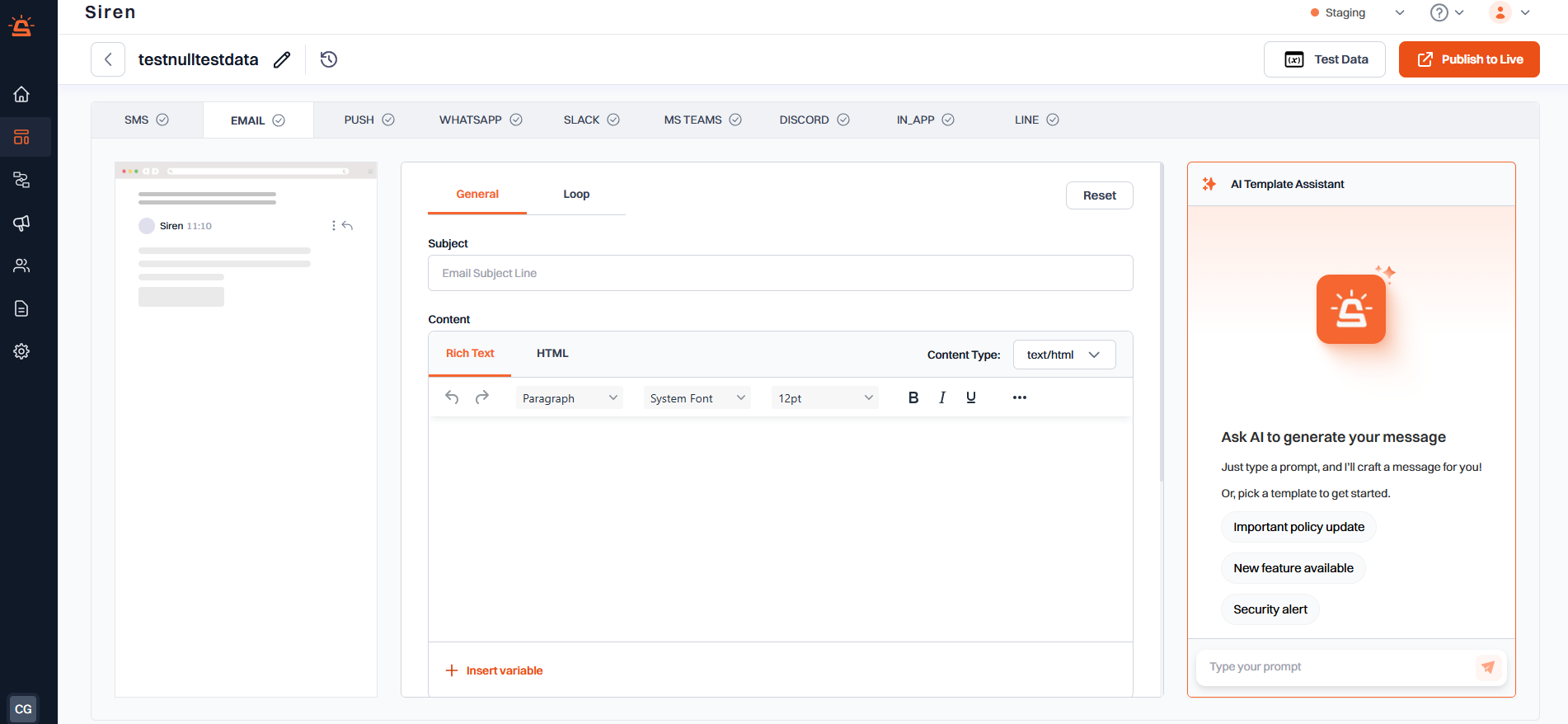
The Email template editor in Siren allows you to craft, personalize, and manage emails for workflows and campaigns. You can customize content, add dynamic variables, configure advanced sender options, and attach files; all from one place.
 Email templates must use Handlebars syntax for proper variable handling
Use the **subject** field to define the email's subject that appears in the recipient's inbox. It supports variable substitution for personalization.
You can write the body of the email using:
* **Rich Text(default)**: for basic formatting like bold, italics, link, and lists.
* **HTML Mode**: for custom layouts, branded designs, and complete control over styling. Use the **Toggle Content Mode** button to switch between these two modes based on your use case.
* Use **Insert Variable** to include dynamic content like `{{order_id}}` or `{{user_name}}`.
* Use **Insert Image/Logo** to embed brand elements like headers or logos within your message.
You can fine-tune sender information and delivery behavior using the following optional fields:
| Setting | Purpose |
| :-------------- | :--------------------------------------------------------------------------------- |
| **From Name** | Display name shown to recipients (e.g., “Siren Notifications”) |
| **From Email** | Email address used to send the message |
| **Reply-To** | Address where user replies should go |
| **CC / BCC** | Add carbon or blind carbon copy recipients |
| **Attachments** | user can attach PDFs, images, docx, and csv, but has to be passed in base64 format |
The transaction ID generated after publishing the transactional template in your Loops account.
Add variables that will be dynamically replaced in the transactional email template
Add attachments that will be sent with the transactional email template
Email templates must use Handlebars syntax for proper variable handling
Use the **subject** field to define the email's subject that appears in the recipient's inbox. It supports variable substitution for personalization.
You can write the body of the email using:
* **Rich Text(default)**: for basic formatting like bold, italics, link, and lists.
* **HTML Mode**: for custom layouts, branded designs, and complete control over styling. Use the **Toggle Content Mode** button to switch between these two modes based on your use case.
* Use **Insert Variable** to include dynamic content like `{{order_id}}` or `{{user_name}}`.
* Use **Insert Image/Logo** to embed brand elements like headers or logos within your message.
You can fine-tune sender information and delivery behavior using the following optional fields:
| Setting | Purpose |
| :-------------- | :--------------------------------------------------------------------------------- |
| **From Name** | Display name shown to recipients (e.g., “Siren Notifications”) |
| **From Email** | Email address used to send the message |
| **Reply-To** | Address where user replies should go |
| **CC / BCC** | Add carbon or blind carbon copy recipients |
| **Attachments** | user can attach PDFs, images, docx, and csv, but has to be passed in base64 format |
The transaction ID generated after publishing the transactional template in your Loops account.
Add variables that will be dynamically replaced in the transactional email template
Add attachments that will be sent with the transactional email template