> ## Documentation Index
> Fetch the complete documentation index at: https://docs.trysiren.io/llms.txt
> Use this file to discover all available pages before exploring further.
# Meta WhatsApp
***Prerequisites:***
* Active Meta Developer account with WhatsApp Business API access
* Verified business with Meta
* Approved WhatsApp Business Account
* Pre-configured message templates
 ## Integration Setup
To integrate your Meta account with Siren for WhatsApp messaging, follow these steps:
Go to the **Providers** section in your Siren dashboard.
Choose the **WhatsApp** channel from the available options.
Locate **Meta** in the list of providers and click on **Add Account**.
Before filling in the account details, gather these credentials from your Meta Developer account:
1. Log in to your [Meta Developer Account](https://developers.facebook.com/)
2. Select your WhatsApp Business App
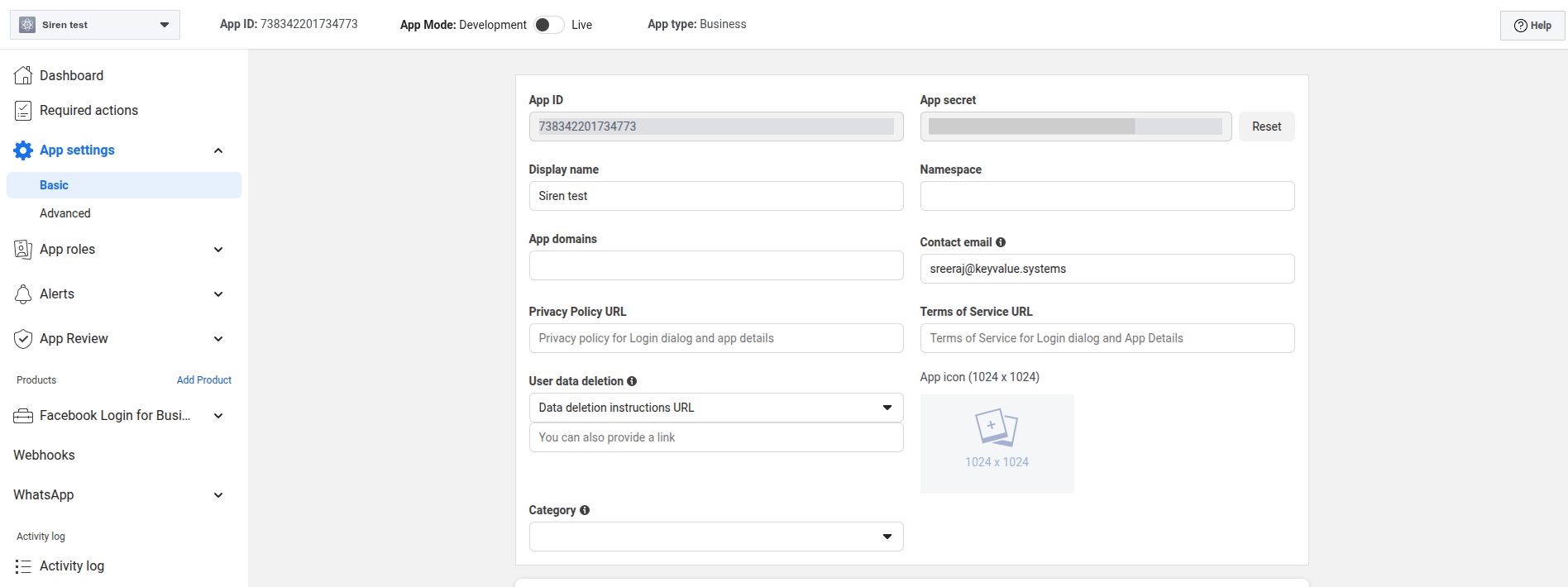
3. In the left navigation panel, click on **App Settings** > **Basic**
* Note down your **App ID** and **App Secret**
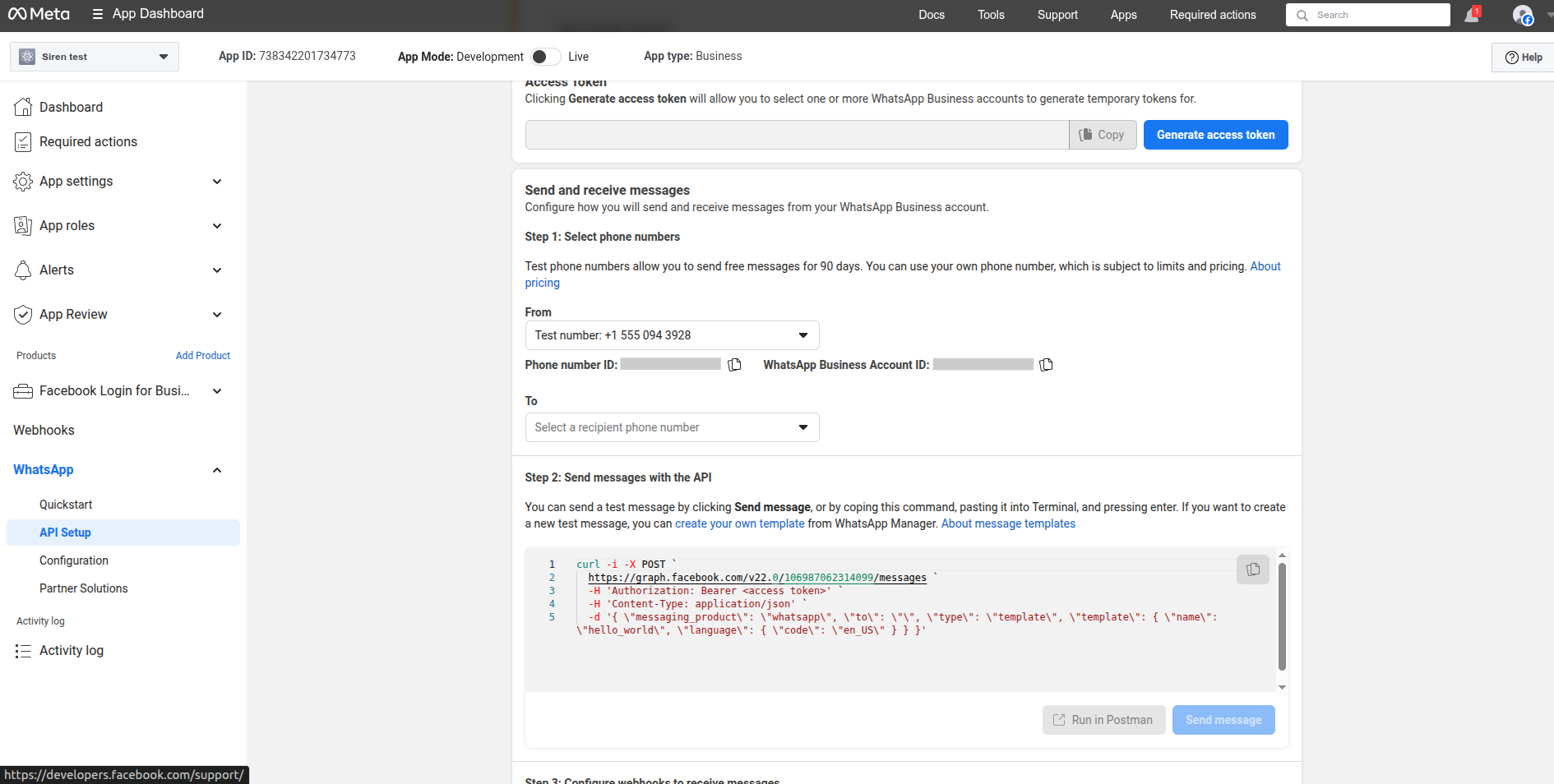
4. In the left navigation, go to **WhatsApp** > **API Setup**
* Click **Generate Token** to get your **Access Token**
* Note down your **Phone Number ID** and **Business Account ID**
## Integration Setup
To integrate your Meta account with Siren for WhatsApp messaging, follow these steps:
Go to the **Providers** section in your Siren dashboard.
Choose the **WhatsApp** channel from the available options.
Locate **Meta** in the list of providers and click on **Add Account**.
Before filling in the account details, gather these credentials from your Meta Developer account:
1. Log in to your [Meta Developer Account](https://developers.facebook.com/)
2. Select your WhatsApp Business App
3. In the left navigation panel, click on **App Settings** > **Basic**
* Note down your **App ID** and **App Secret**
4. In the left navigation, go to **WhatsApp** > **API Setup**
* Click **Generate Token** to get your **Access Token**
* Note down your **Phone Number ID** and **Business Account ID**
 In the pop-up window, enter the following details:
* **Custom Name**: Provide a name for easy identification within Siren's interface
* **App Secret**: The App Secret from Meta Developer Console
* **Access Token**: The token generated in API Setup
* **Business Account ID**: Your WhatsApp Business Account ID
* **Phone Number ID**: The ID of your WhatsApp Business Number
* **Webhook Path**: Copy the webhook URL from Siren
1. In your Meta Developer account, go to **WhatsApp** > **Configuration**
2. Under **Webhook**, click **Edit**
3. Paste the **Callback URL** from Siren
4. Enter the **Verification Token** from Siren
5. Select all the message events you want to receive
6. Click **Verify and Save**
Click on **Save** to complete the Meta WhatsApp integration setup.
* Keep your Access Token and App Secret confidential and never share them publicly.
* Ensure your WhatsApp message templates are pre-approved before sending messages.
In the pop-up window, enter the following details:
* **Custom Name**: Provide a name for easy identification within Siren's interface
* **App Secret**: The App Secret from Meta Developer Console
* **Access Token**: The token generated in API Setup
* **Business Account ID**: Your WhatsApp Business Account ID
* **Phone Number ID**: The ID of your WhatsApp Business Number
* **Webhook Path**: Copy the webhook URL from Siren
1. In your Meta Developer account, go to **WhatsApp** > **Configuration**
2. Under **Webhook**, click **Edit**
3. Paste the **Callback URL** from Siren
4. Enter the **Verification Token** from Siren
5. Select all the message events you want to receive
6. Click **Verify and Save**
Click on **Save** to complete the Meta WhatsApp integration setup.
* Keep your Access Token and App Secret confidential and never share them publicly.
* Ensure your WhatsApp message templates are pre-approved before sending messages.