> ## Documentation Index
> Fetch the complete documentation index at: https://docs.trysiren.io/llms.txt
> Use this file to discover all available pages before exploring further.
# OneSignal
***Prerequisite:***
Ensure you have an account already set up in **OneSignal** with an app built (SDK) within FCM.
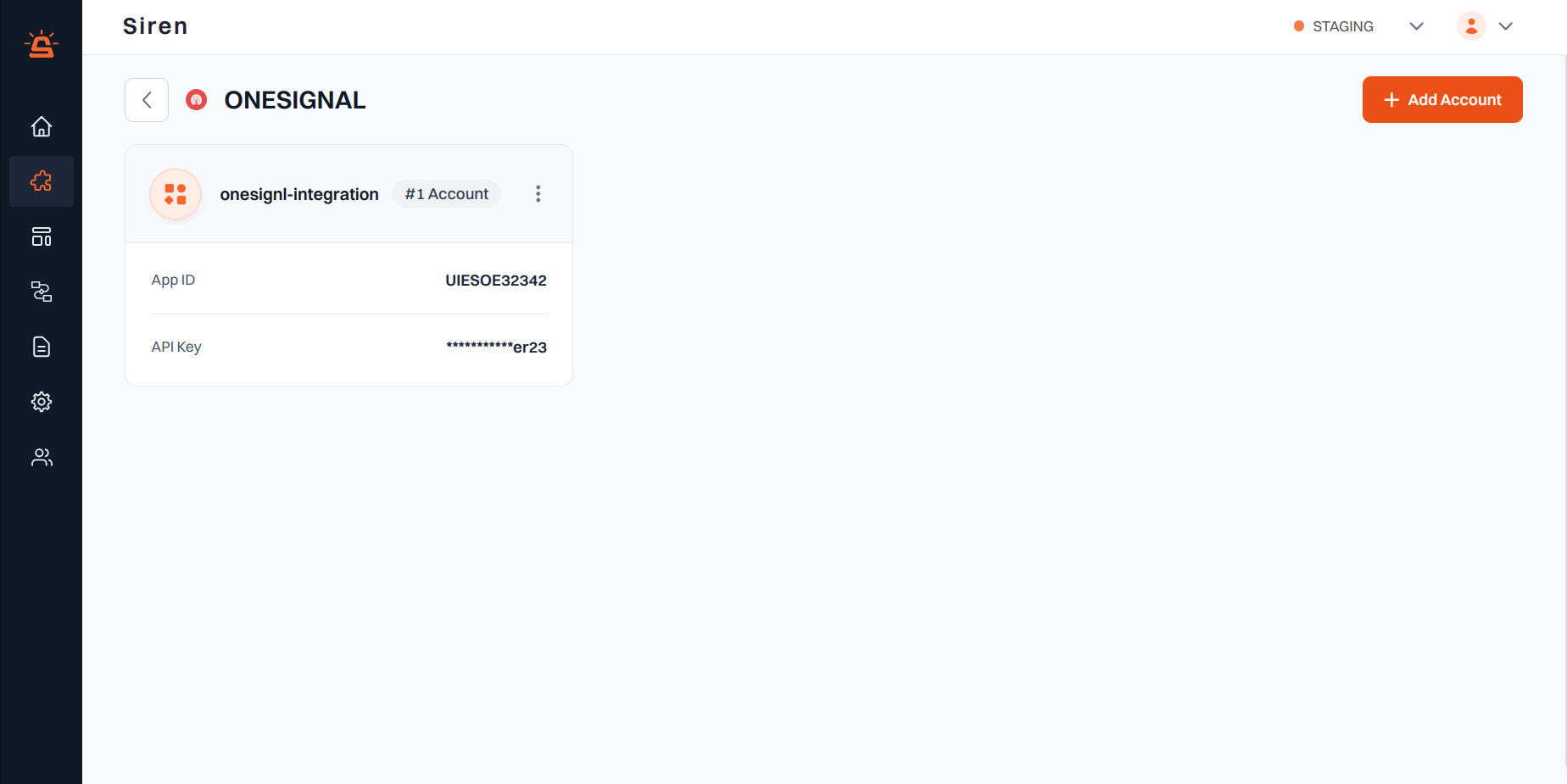 ## Integration Setup
To integrate your OneSignal account with Siren, follow these steps:
Go to the **Providers** section in your Siren dashboard.
Choose the **Push** channel from the available options.
Locate **OneSignal** in the list of providers and click on **Add Account**.
In the pop-up window, enter the following details:
* **Custom Name**: Provide a name for easy identification within Siren's interface.
* **App ID**: From your OneSignal application:
* Navigate to the **Settings** option in the ribbon menu
* Find **Keys & IDs** in the secondary ribbon
* Enter the **App ID**
* **API Key**: From the same **Keys & IDs** section, enter the **REST API Key**
Click on **Save** to save your OneSignal account configuration.
By following these steps, you can seamlessly integrate your OneSignal account with Siren for effective push communication.
## Integration Setup
To integrate your OneSignal account with Siren, follow these steps:
Go to the **Providers** section in your Siren dashboard.
Choose the **Push** channel from the available options.
Locate **OneSignal** in the list of providers and click on **Add Account**.
In the pop-up window, enter the following details:
* **Custom Name**: Provide a name for easy identification within Siren's interface.
* **App ID**: From your OneSignal application:
* Navigate to the **Settings** option in the ribbon menu
* Find **Keys & IDs** in the secondary ribbon
* Enter the **App ID**
* **API Key**: From the same **Keys & IDs** section, enter the **REST API Key**
Click on **Save** to save your OneSignal account configuration.
By following these steps, you can seamlessly integrate your OneSignal account with Siren for effective push communication.