> ## Documentation Index
> Fetch the complete documentation index at: https://docs.trysiren.io/llms.txt
> Use this file to discover all available pages before exploring further.
# Firebase Cloud Messaging (FCM)
> Step-by-step guide to integrate Firebase Cloud Messaging with Siren for push notifications
***Prerequisites:***
* A Firebase project
* Firebase Admin SDK credentials (service account key)
* Firebase Cloud Messaging API enabled
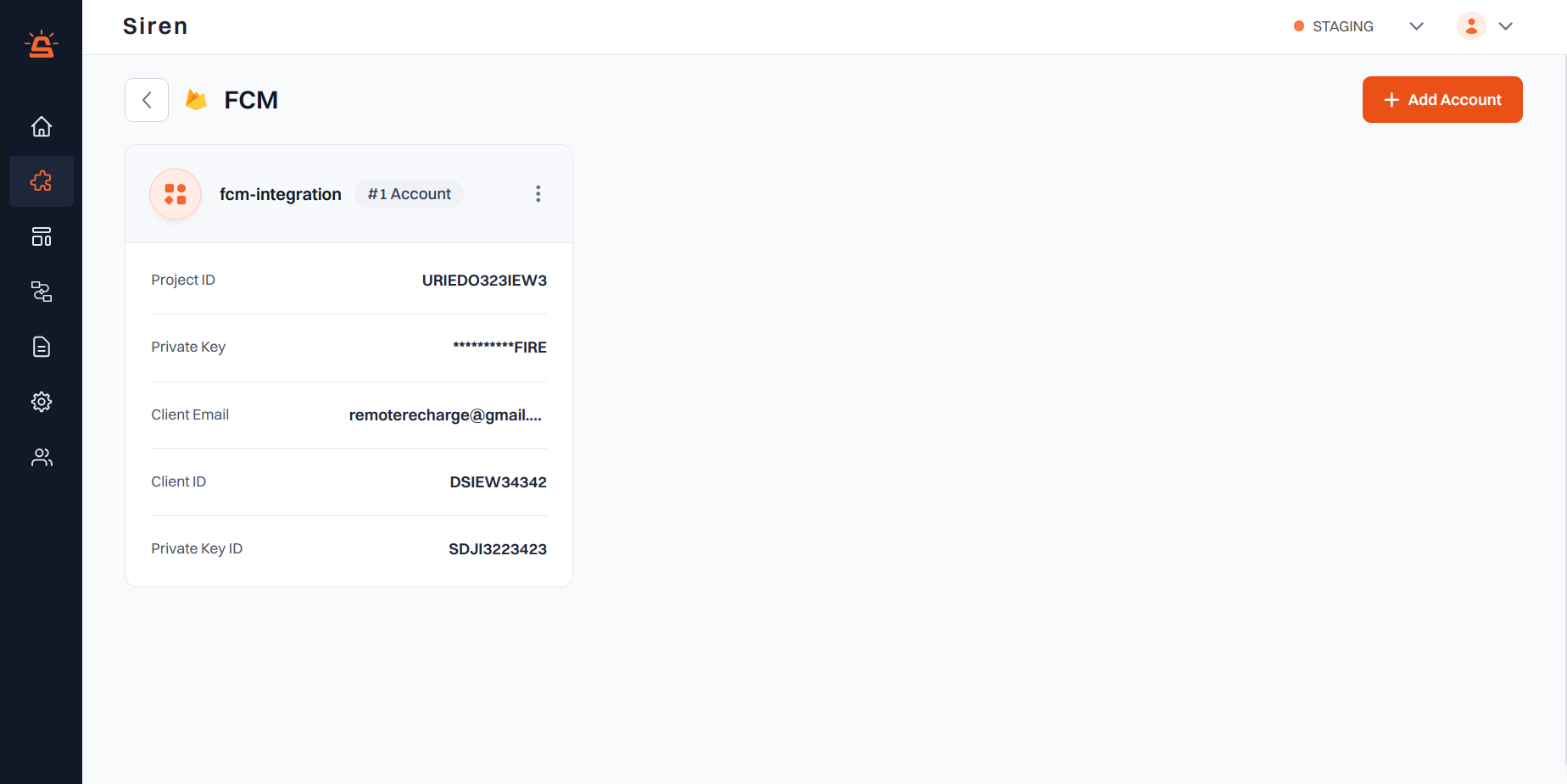 ## Integration Setup
To integrate FCM with Siren for push notifications, follow these steps:
Go to the **Providers** section in your Siren dashboard.
Choose the **Push Notifications** channel from the available options.
Locate **Firebase Cloud Messaging (FCM)** in the list of providers and click on **Add Account**.
In the pop-up window, enter the following details:
* **Custom Name**: A name to identify this integration in Siren
* **Service Account Key**:
* Go to [Firebase Console](https://console.firebase.google.com/) > Project Settings > Service Accounts
* Click **Generate New Private Key**
* Upload the downloaded JSON file or paste its contents
* **Default Notification Icon**: (Android) Resource name of the icon to use for notifications
* **Default Notification Color**: (Android) Hex color code for the notification icon
Click **Save** to complete the setup.
## Integration Setup
To integrate FCM with Siren for push notifications, follow these steps:
Go to the **Providers** section in your Siren dashboard.
Choose the **Push Notifications** channel from the available options.
Locate **Firebase Cloud Messaging (FCM)** in the list of providers and click on **Add Account**.
In the pop-up window, enter the following details:
* **Custom Name**: A name to identify this integration in Siren
* **Service Account Key**:
* Go to [Firebase Console](https://console.firebase.google.com/) > Project Settings > Service Accounts
* Click **Generate New Private Key**
* Upload the downloaded JSON file or paste its contents
* **Default Notification Icon**: (Android) Resource name of the icon to use for notifications
* **Default Notification Color**: (Android) Hex color code for the notification icon
Click **Save** to complete the setup.