> ## Documentation Index
> Fetch the complete documentation index at: https://docs.trysiren.io/llms.txt
> Use this file to discover all available pages before exploring further.
# Siren In-App
***Before You Begin:***
> **Note:**\
> You can only configure up to 5 account credentials within In-App.
>
>  ## Integration Setup
To seamlessly integrate Siren with your In-App channel, follow these steps:
Go to the **Providers** section in your Siren dashboard.
Select the **In-App** channel from the available options.
From the list of providers, locate and click on **Siren**, then click **Add Account**.
In the pop-up window, enter the following details:
* **Custom Name**: Assign a distinctive name for easy identification within Siren's interface.
Click **Save** to confirm and store your configuration.
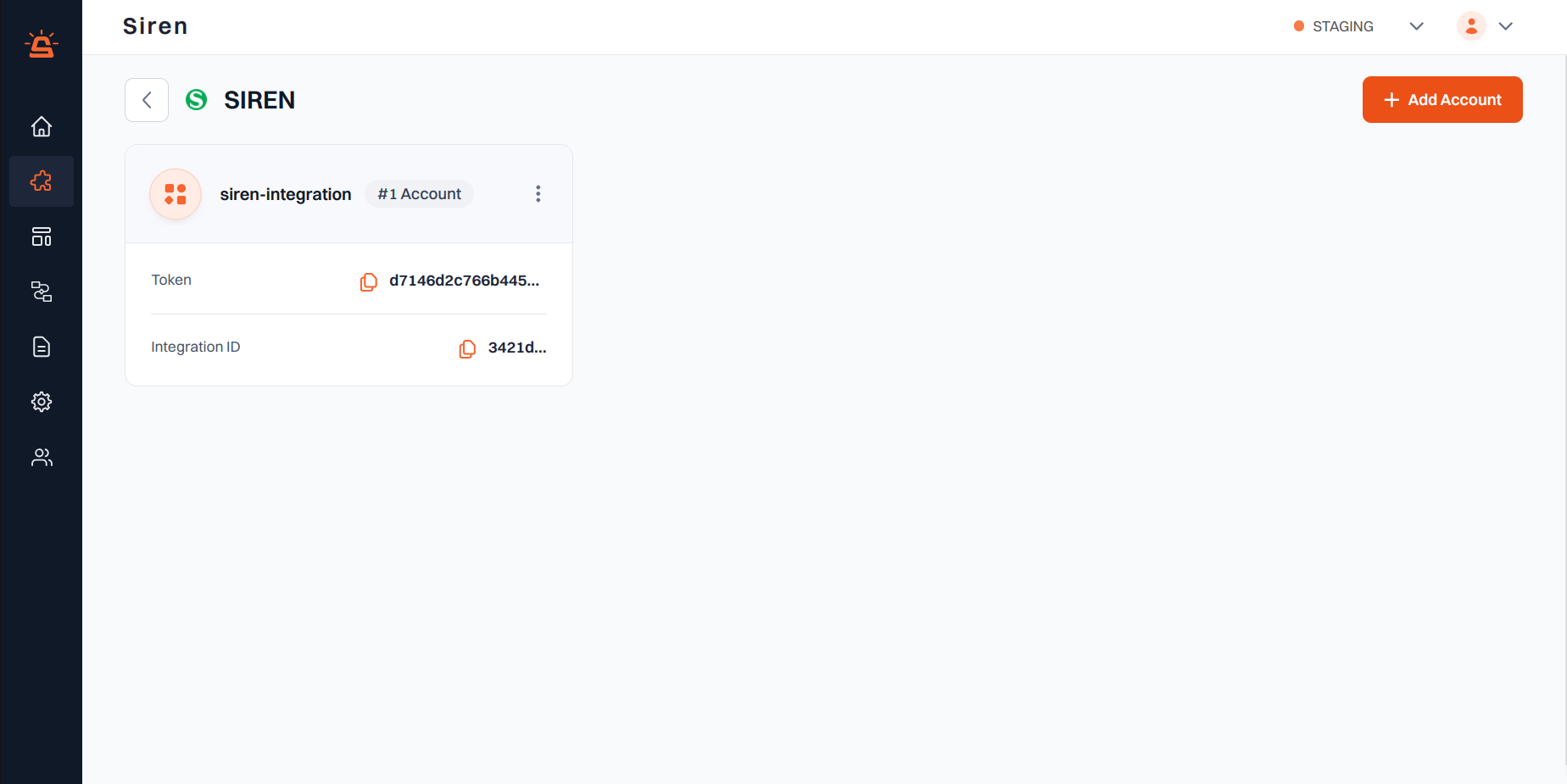
After saving, you will receive a token and Integration ID. Use these to establish the connection between your system and Siren:
* **Token**: \[Your provided token will appear here]
* **Integration ID**: \[Your integration ID will appear here]
### Next Steps
Once integrated, you can:
* Send in-app notifications to your users
* Track delivery and engagement metrics
* Customize notification appearance and behavior
## Integration Setup
To seamlessly integrate Siren with your In-App channel, follow these steps:
Go to the **Providers** section in your Siren dashboard.
Select the **In-App** channel from the available options.
From the list of providers, locate and click on **Siren**, then click **Add Account**.
In the pop-up window, enter the following details:
* **Custom Name**: Assign a distinctive name for easy identification within Siren's interface.
Click **Save** to confirm and store your configuration.
After saving, you will receive a token and Integration ID. Use these to establish the connection between your system and Siren:
* **Token**: \[Your provided token will appear here]
* **Integration ID**: \[Your integration ID will appear here]
### Next Steps
Once integrated, you can:
* Send in-app notifications to your users
* Track delivery and engagement metrics
* Customize notification appearance and behavior