> ## Documentation Index
> Fetch the complete documentation index at: https://docs.trysiren.io/llms.txt
> Use this file to discover all available pages before exploring further.
# Slack
***Prerequisite:*** Ensure you have an existing Slack account.
 ## Before You Begin
Before proceeding with the Slack integration, you need to configure your Slack App with the required permissions and features.
### Create and Configure Your Slack App
1. Go to the [Slack API: Your Apps Dashboard](https://api.slack.com/apps).
2. Click **Create New App**.
3. Select **From scratch**.
4. Enter your app details:
* **App Name** (e.g., `My Siren Integration`)
* **Development Slack Workspace** (where the app will be installed)
5. Click **Create App**.
1. In the left sidebar, click **OAuth & Permissions**.
2. Under **Scopes**, add the following Bot Token Scopes:
| **OAuth Scope** | **Description** |
| ------------------- | ---------------------------------------------------------------------------------------------- |
| `app_mentions:read` | View messages that directly mention your app in conversations that the app is in |
| `channels:history` | View messages and other content in public channels that your app has been added to |
| `chat:write` | Send messages as your app |
| `files:read` | View files shared in channels and conversations that your app has been added to |
| `im:history` | View messages and other content in direct messages that your app has been added to |
| `im:write` | Start direct messages with people |
| `incoming-webhook` | Post messages to specific channels in Slack |
| `mpim:write` | Start group direct messages with people |
| `reactions:read` | View emoji reactions and their associated content in channels and conversations your app is in |
| `users:read` | View people in a workspace |
| `users:read.email` | View email addresses of people in a workspace |
3. Click **Save Changes**.
1. In the left sidebar, click **OAuth & Permissions**
2. Click **Install to Workspace**
3. Authorize the app
4. Copy the **Bot User OAuth Token** (starts with `xoxb-`)
5. Copy App ID from **Basic Information** tab in left sidebar
### Add Slack Account to Siren
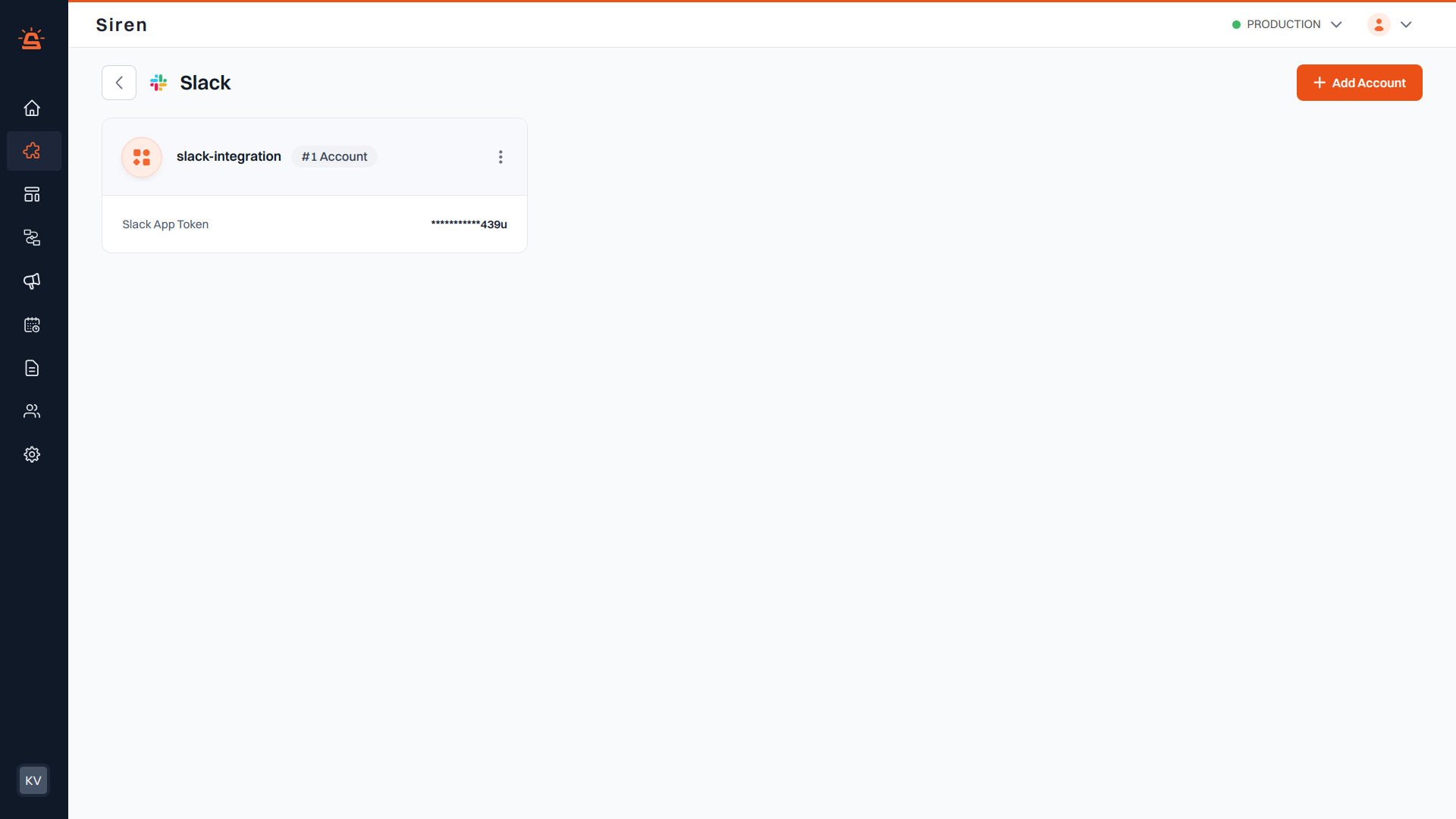
Go to the **Providers** section in your Siren dashboard.
Choose the **Chat** channel from the available options.
Locate **Slack** in the list of providers and click on **Add Account**.
In the pop-up window, enter the following details:
* **Custom Name**: Provide a name for easy identification within Siren's interface.
* **Slack Bot Token**: Enter the Bot User OAuth Token (starts with `xoxb-`) obtained from your Slack App configuration.
* **App ID**: Enter the App ID obtained from your Slack App configuration.
Click **Save** to complete the Slack account configuration in Siren.
Chat Node is a Beta feature
* Navigate to **Providers** section in your Siren dashboard.
* Select **Chat** channel.
* Select **Slack** provider.
* Open edit modal of the added provider, copy **Inbound Webhook Path**.
* Navigate to Event Subscriptions and enable it.
* Add the copied **Inbound Webhook Path** as **Request URL**.
* Subscribe to relevant Bot Events, such as:
* `message.channels`
* `message.groups`
* `message.im`
* `message.added`
* Navigate to Interactivity and Shortcuts tab from left sidebar.
* Add the copied inbound webhook path as Request URL
## Before You Begin
Before proceeding with the Slack integration, you need to configure your Slack App with the required permissions and features.
### Create and Configure Your Slack App
1. Go to the [Slack API: Your Apps Dashboard](https://api.slack.com/apps).
2. Click **Create New App**.
3. Select **From scratch**.
4. Enter your app details:
* **App Name** (e.g., `My Siren Integration`)
* **Development Slack Workspace** (where the app will be installed)
5. Click **Create App**.
1. In the left sidebar, click **OAuth & Permissions**.
2. Under **Scopes**, add the following Bot Token Scopes:
| **OAuth Scope** | **Description** |
| ------------------- | ---------------------------------------------------------------------------------------------- |
| `app_mentions:read` | View messages that directly mention your app in conversations that the app is in |
| `channels:history` | View messages and other content in public channels that your app has been added to |
| `chat:write` | Send messages as your app |
| `files:read` | View files shared in channels and conversations that your app has been added to |
| `im:history` | View messages and other content in direct messages that your app has been added to |
| `im:write` | Start direct messages with people |
| `incoming-webhook` | Post messages to specific channels in Slack |
| `mpim:write` | Start group direct messages with people |
| `reactions:read` | View emoji reactions and their associated content in channels and conversations your app is in |
| `users:read` | View people in a workspace |
| `users:read.email` | View email addresses of people in a workspace |
3. Click **Save Changes**.
1. In the left sidebar, click **OAuth & Permissions**
2. Click **Install to Workspace**
3. Authorize the app
4. Copy the **Bot User OAuth Token** (starts with `xoxb-`)
5. Copy App ID from **Basic Information** tab in left sidebar
### Add Slack Account to Siren
Go to the **Providers** section in your Siren dashboard.
Choose the **Chat** channel from the available options.
Locate **Slack** in the list of providers and click on **Add Account**.
In the pop-up window, enter the following details:
* **Custom Name**: Provide a name for easy identification within Siren's interface.
* **Slack Bot Token**: Enter the Bot User OAuth Token (starts with `xoxb-`) obtained from your Slack App configuration.
* **App ID**: Enter the App ID obtained from your Slack App configuration.
Click **Save** to complete the Slack account configuration in Siren.
Chat Node is a Beta feature
* Navigate to **Providers** section in your Siren dashboard.
* Select **Chat** channel.
* Select **Slack** provider.
* Open edit modal of the added provider, copy **Inbound Webhook Path**.
* Navigate to Event Subscriptions and enable it.
* Add the copied **Inbound Webhook Path** as **Request URL**.
* Subscribe to relevant Bot Events, such as:
* `message.channels`
* `message.groups`
* `message.im`
* `message.added`
* Navigate to Interactivity and Shortcuts tab from left sidebar.
* Add the copied inbound webhook path as Request URL