> ## Documentation Index
> Fetch the complete documentation index at: https://docs.trysiren.io/llms.txt
> Use this file to discover all available pages before exploring further.
# User Management
> Comprehensive guide to managing users and their communication preferences in Siren
The User Management section allows you to manage user data for multi-channel communication, including adding users individually or in bulk.
## Users Overview
 ### Overview
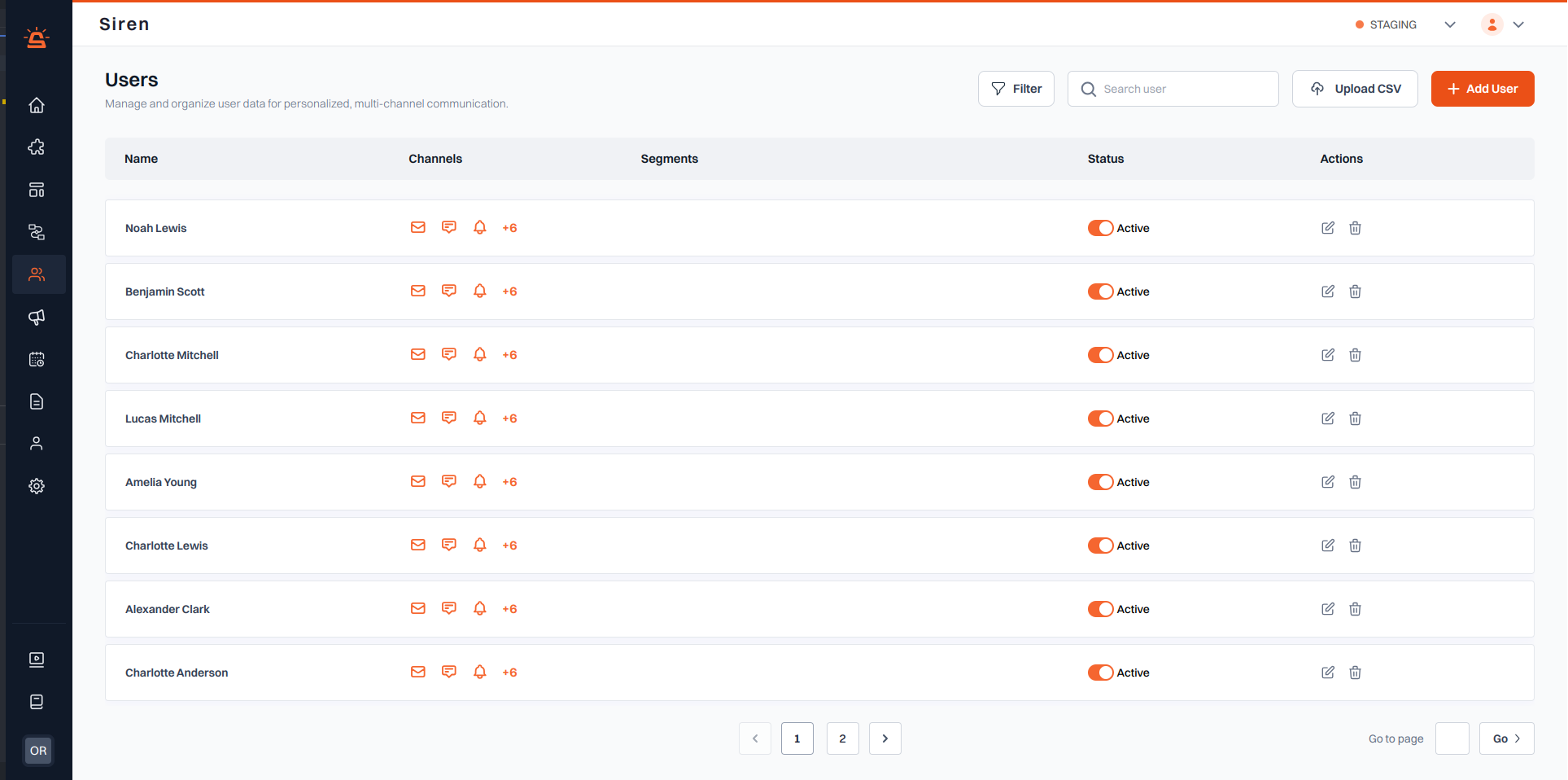
* **Name**: The name of the user.
* **Channels**: Icons represent the active communication channels (e.g., email, SMS, push notifications).
* **Segments**: The user's segment for targeted communication.
* **Status**: Toggle the user's activation status.
* **Actions**: Edit or delete the user via the action buttons.
### Key Features
* **Search & Filter**: Search users by name or apply filters.
* **Add User**: Manually add a new user with customizable fields and channel options.
* **Upload CSV**: Import multiple users at once using a CSV file.
## Managing Users
### Adding a User
1. Click the **Add User** button to open the user creation form.
2. Fill in the user's basic information:
* First and Last Name
* Reference ID
* Active communication channels
### Overview
* **Name**: The name of the user.
* **Channels**: Icons represent the active communication channels (e.g., email, SMS, push notifications).
* **Segments**: The user's segment for targeted communication.
* **Status**: Toggle the user's activation status.
* **Actions**: Edit or delete the user via the action buttons.
### Key Features
* **Search & Filter**: Search users by name or apply filters.
* **Add User**: Manually add a new user with customizable fields and channel options.
* **Upload CSV**: Import multiple users at once using a CSV file.
## Managing Users
### Adding a User
1. Click the **Add User** button to open the user creation form.
2. Fill in the user's basic information:
* First and Last Name
* Reference ID
* Active communication channels
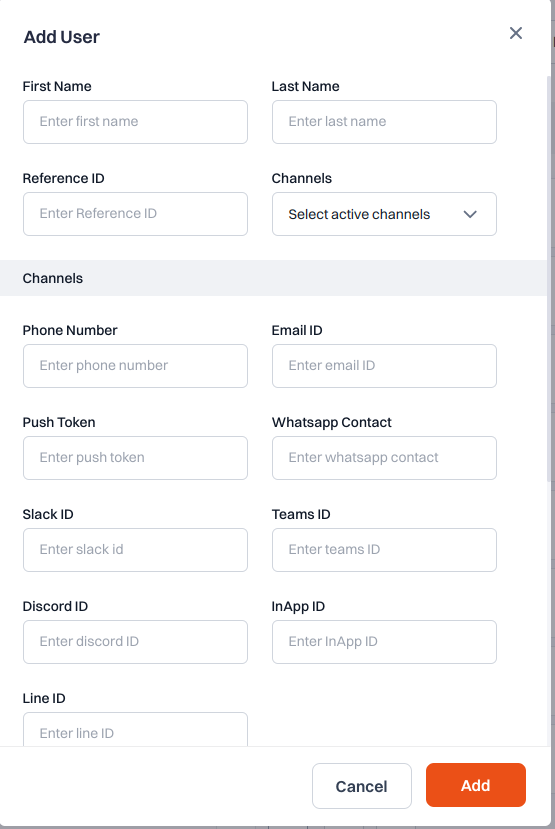 3. For each selected channel, provide the required information:
* Email address for email notifications
* Phone number for SMS
* Push token for mobile notifications
* Other channel-specific details
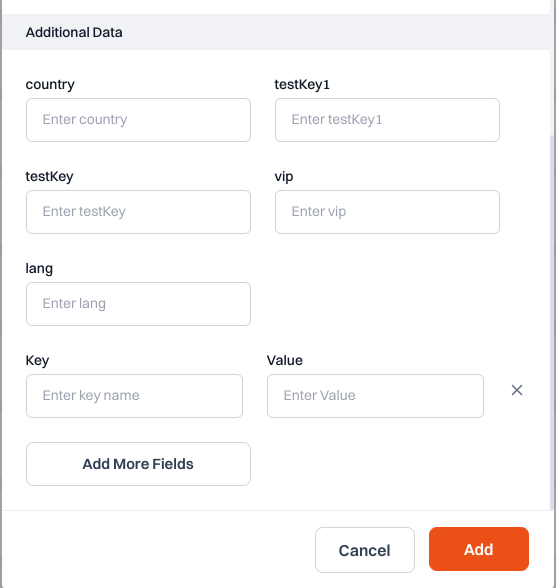
4. (Optional) Provide additional information:
* Country
* Language preference
* VIP status
* Custom fields
3. For each selected channel, provide the required information:
* Email address for email notifications
* Phone number for SMS
* Push token for mobile notifications
* Other channel-specific details
4. (Optional) Provide additional information:
* Country
* Language preference
* VIP status
* Custom fields
 5. Click **Submit** to add the user.
### Adding Custom Fields
1. Click the **Add More Fields** button in the user form.
2. Enter a custom field name (key) and its value.
3. Multiple custom fields can be added as needed.
4. Click **Submit** to save the user with custom fields.
### Bulk User Upload via CSV
1. Click the **Upload CSV** button.
2. Select a properly formatted CSV file containing user data.
3. Map the CSV columns to the appropriate user fields.
4. Click **Submit** to import multiple users at once.
5. Click **Submit** to add the user.
### Adding Custom Fields
1. Click the **Add More Fields** button in the user form.
2. Enter a custom field name (key) and its value.
3. Multiple custom fields can be added as needed.
4. Click **Submit** to save the user with custom fields.
### Bulk User Upload via CSV
1. Click the **Upload CSV** button.
2. Select a properly formatted CSV file containing user data.
3. Map the CSV columns to the appropriate user fields.
4. Click **Submit** to import multiple users at once.
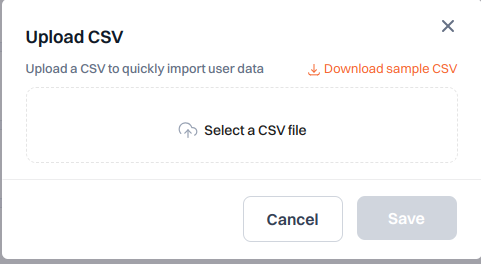 > **Note**: Ensure your CSV file follows the required format. Download our [CSV template](#) for reference.
## User Settings
### Channel Preferences
* View and modify which communication channels are active for each user
* Update contact information for each channel
* Set notification preferences
### User Segments
* Assign users to segments for targeted communication
* Create and manage custom segments
* Filter users by segment for bulk actions
> **Note**: Ensure your CSV file follows the required format. Download our [CSV template](#) for reference.
## User Settings
### Channel Preferences
* View and modify which communication channels are active for each user
* Update contact information for each channel
* Set notification preferences
### User Segments
* Assign users to segments for targeted communication
* Create and manage custom segments
* Filter users by segment for bulk actions